
Convert WebP to JPG: Quick Guide & Simple Methods
Converting WebP to JPG is easy with free tools and online options. For Windows users who want batch processing and more control over image quality, Better Colors offers a simple solution. Download it now and handle all your image conversions in one place.
WebP is a modern image format that saves space and loads quickly on websites. However, many programs and devices still don't support it. You might need to open a WebP file in an older photo editor or share it with someone who can't view the format. Converting WebP to JPG solves this problem and makes your images compatible with almost any software.
Why Convert WebP Files
JPG remains the most widely supported image format across all devices and applications. Social media platforms, email clients, and older software handle JPG without issues. WebP files often cause errors when you try to upload them to certain websites or open them in basic image viewers. The conversion process takes seconds and ensures your photos work everywhere.
Using Online Conversion Tools
Online converters let you change formats without installing software. Visit a converter website, upload your WebP file, and select JPG as the output format. The site processes your image and provides a download link. Many services handle multiple files at once, which saves time when you have several images to convert. These tools work on any device with a web browser. After you compress jpeg, the file becomes even easier to share via email or messaging apps.
Converting with Windows Software
Windows includes Paint, a basic program that opens WebP files and saves them as JPG. Right-click your WebP image, choose "Open with," and select Paint. Click "File," then "Save as," and pick JPG from the format list. Name your file and click "Save." The process completes in seconds, and your new JPG file appears in the chosen folder.
Third-party image editors offer more control over quality settings. Programs like GIMP or IrfanView open WebP files and export them with custom compression levels. Higher compression creates smaller files but reduces quality slightly. Lower compression keeps more detail but increases file size.
Batch Processing Multiple Files
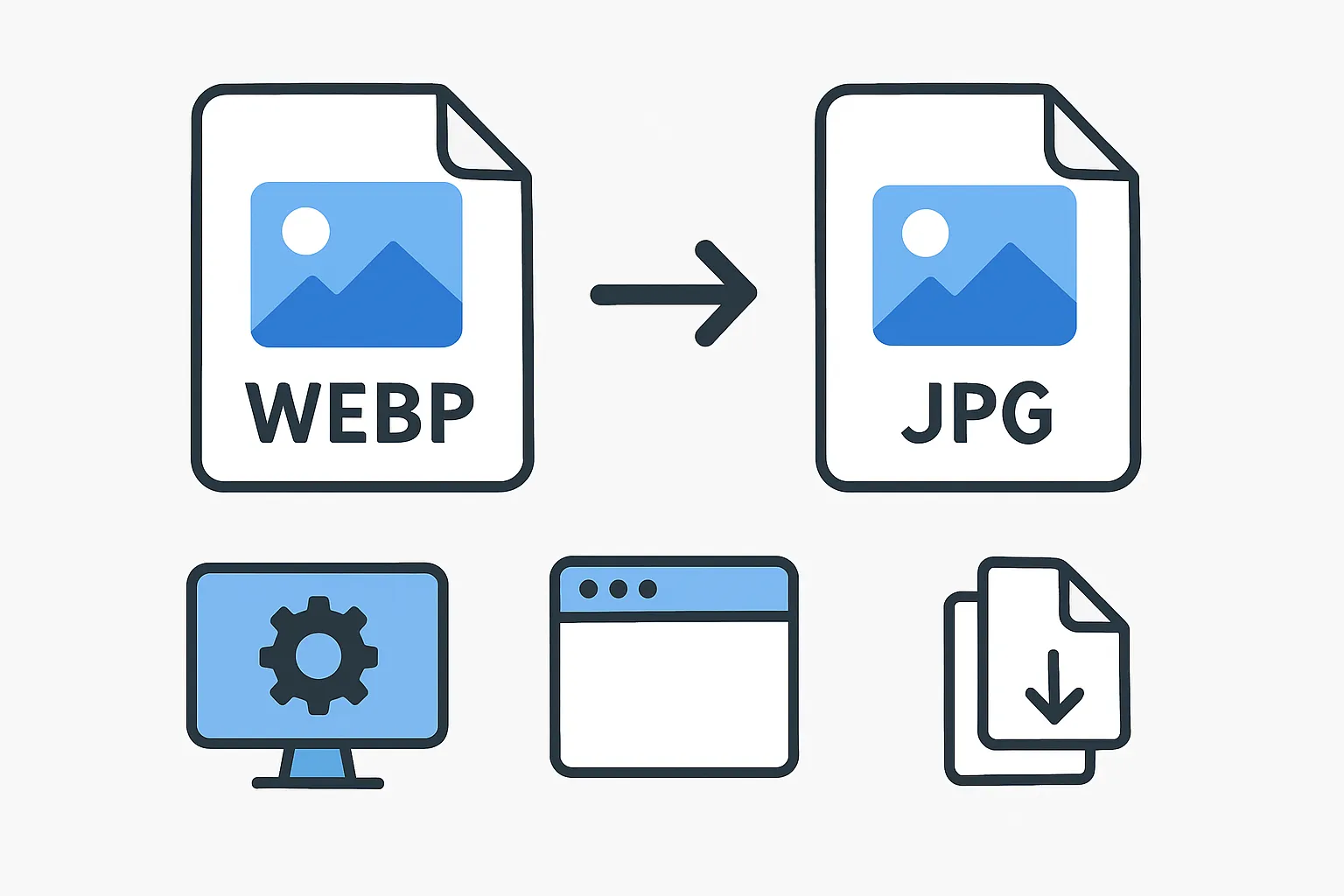
When you need to convert dozens of WebP images, batch processing saves hours of repetitive work. Dedicated converter software handles entire folders at once. You can also try an image enhancer to boost quality while converting formats. Load all your WebP files, choose JPG as the target format, and start the process. The program converts every image while you focus on other tasks.
Command-line tools offer advanced options for technical users. ImageMagick and similar utilities convert files through text commands. This approach works well for automated workflows or server environments where you process images regularly.
Quick Conversion Steps
Here are the basic steps that work with most tools:
- Upload or open your WebP file in the converter or editor
- Select JPG (or JPEG) as the output format
- Save or download the converted image to your computer
Quality Considerations
JPG uses lossy compression, which means some image data is removed to reduce file size. Set quality between 80 and 95 percent for the best balance between file size and visual appearance. Lower settings create smaller files but introduce visible artifacts. Higher settings preserve more detail but produce larger files. If you need to upscale images, do it before converting to JPG to maintain sharpness.
Test different quality levels to find what works for your needs. Photos with smooth gradients need higher quality settings than simple graphics. Screenshots and diagrams often compress well at lower settings without noticeable quality loss.
Preserving Transparency
JPG doesn't support transparent backgrounds. If your WebP file has transparency, those areas become white or another solid color after conversion. For images that need transparency, consider svg to png conversion instead. PNG format keeps transparent areas intact and provides lossless compression. Use PNG when you need to preserve every pixel exactly as it appears in the original.
Mobile Conversion Options
Smartphone apps handle WebP to JPG conversion on the go. Download an image converter from your app store, select your WebP file, and export it as JPG. Many photo gallery apps now recognize WebP format and offer built-in conversion through the share menu. This method works when you receive WebP images through messaging apps or download them from websites on your phone.
Professional Image Management
After converting your files, you might want to improve their appearance. Better Colors is a free Windows application that enhances photos with one click, supporting common formats like JPEG and PNG. Download Better Colors to quickly adjust contrast and color in your converted images without learning complex editing software.