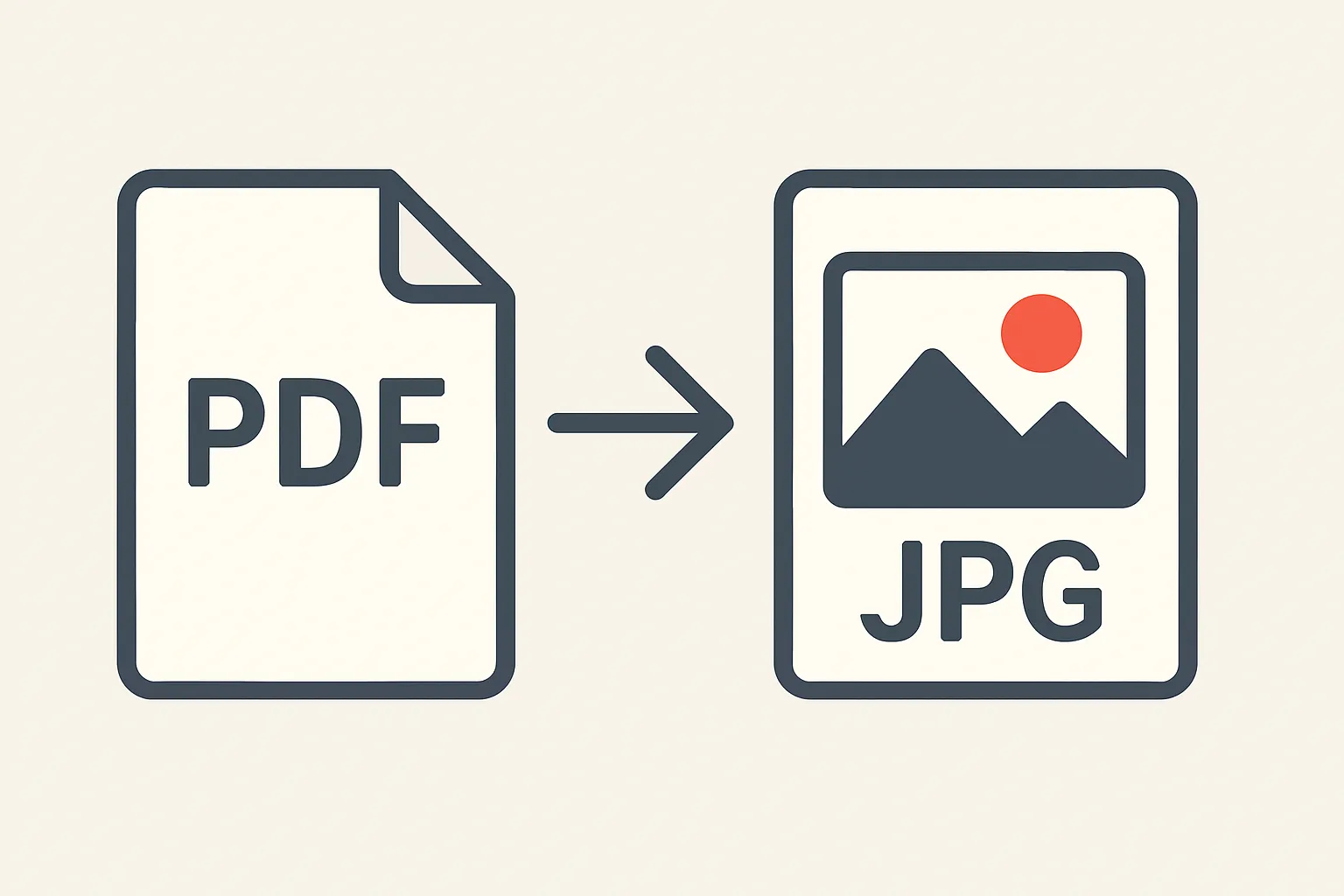
Convert PDF to JPG: Quick and Simple Methods
Ready to convert PDFs to JPG images? Better Colors for Windows gives you fast, free tools to handle your file conversions directly on your PC. No online uploads needed - just quick results you can trust.

PDF files are perfect for sharing documents, but sometimes you need images instead. You might want to post a page on social media, insert a document page into a presentation, or simply view a file on a device that struggles with PDFs. Converting PDF to JPG solves these problems quickly.
Why Convert PDF Files to Images
Images are easier to share and display than PDF documents in many situations. JPG files load faster on websites, work with more apps, and take up less space when you only need specific pages. Some platforms don't accept PDF uploads but welcome image files without hesitation.
Free Online Conversion Tools
Online converters let you transform PDF pages into JPG images without installing software. Upload your PDF file to the converter website, select your quality preferences, and download the resulting images. Most services process files quickly and handle multi-page documents by creating separate JPG files for each page.
Quick conversion steps:
- Upload your PDF file to an online converter
- Choose JPG as your output format and set quality level
- Download the converted images to your device
These web-based tools work on any operating system and require only an internet connection. You can also compress images afterward if the file sizes are too large for your needs.
Using Desktop Software
Desktop applications give you more control over the conversion process. Many pDF compressor tools also include conversion features. Adobe Acrobat lets you export PDF pages as images directly from the File menu. Free alternatives like GIMP open PDF files and let you save each page as a JPG with custom resolution settings.
Converting on Mobile Devices
Your smartphone can handle PDF to JPG conversion through dedicated apps. These mobile solutions process files right on your device, which means you don't need to upload sensitive documents to external servers. Simply open the PDF in the conversion app, select the pages you want, and save them as JPG files to your photo gallery.
Choosing the Right Quality Settings
Higher quality settings produce clearer images but create larger files. For documents with text, use at least 150 DPI to keep words readable. Photos and graphics within PDFs often look better at 300 DPI. Lower settings around 72 DPI work fine for quick previews or when file size matters more than detail.
Batch Processing Multiple Files
When you have many PDFs to convert, batch processing saves time. Some desktop programs let you queue dozens of files and convert them all at once while you work on other tasks. This automated approach works well for digitizing document archives or preparing materials for web publishing.
Handling Password-Protected PDFs
Locked PDF files require the password before conversion tools can access their content. Enter the correct password when prompted, and the converter will process the file normally. This security feature protects confidential information from unauthorized viewing or copying. Some situations may also benefit from an aI image enhancer to improve scanned document quality after conversion.
Converting Specific Pages Only
You don't always need every page from a PDF. Most conversion tools let you select specific page ranges or individual pages. This selective approach saves processing time and storage space when you only need a few pages from a lengthy document. Simply specify which pages to extract before starting the conversion.
Maintaining Image Quality After Conversion
Converted images should look clean and professional. Check the output files before deleting your original PDF. If text appears blurry, try converting again with higher DPI settings. You can also enhance photos using editing software to adjust brightness and contrast if the conversion created washed-out images.
Once you've converted your PDF files to JPG format, you might want to improve their appearance. Download Better Colors, a free Windows application that enhances your images with AI-powered technology and works completely offline after installation.